
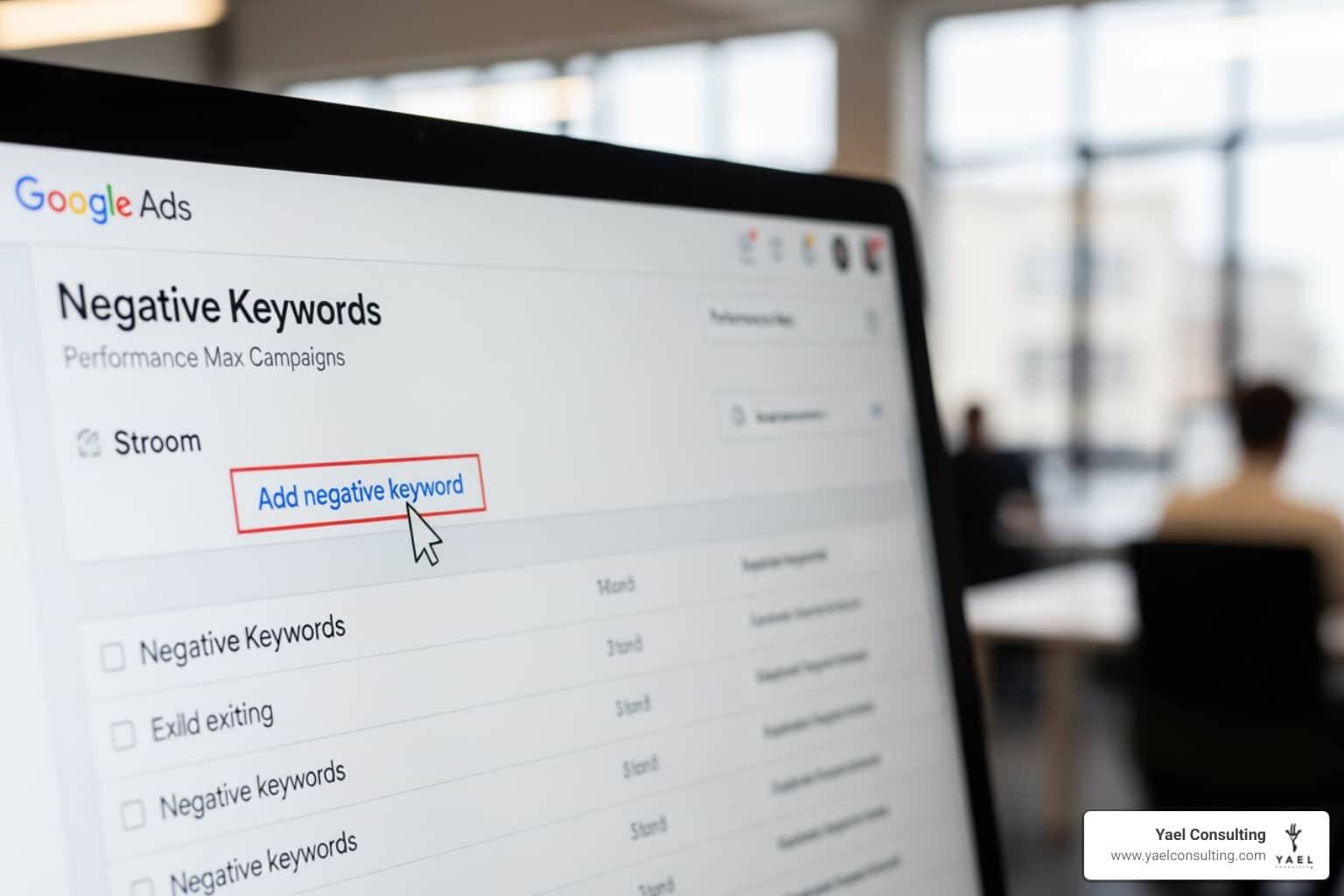
Why Performance Max Needs Negative Keyword Control
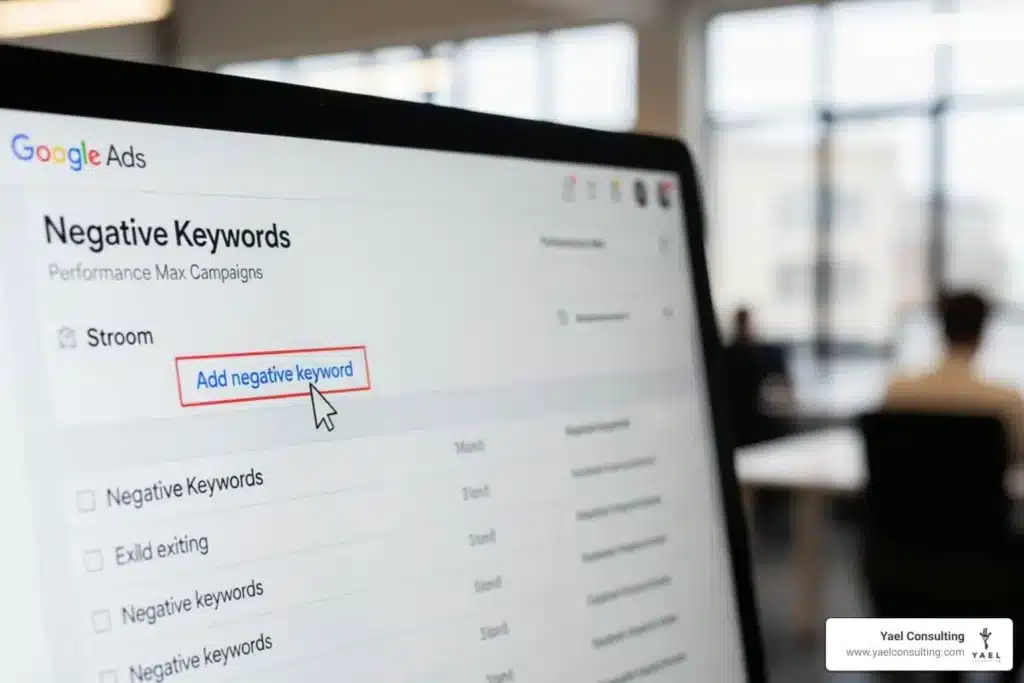
Add negative keywords to performance max by navigating to your campaign’s Keywords tab, clicking “Negative keywords,” then selecting the plus button to add individual terms (up to 10,000 per campaign). Alternatively, apply negative keywords at the account level to automatically exclude terms across all Search and Shopping inventory, including Performance Max campaigns.
Quick Steps to Add Negative Keywords to Performance Max:
- Campaign-Level Method: Go to Campaigns > Keywords > Negative keywords tab > Click + button > Select your Performance Max campaign > Add keywords (one per line) > Save
- Account-Level Method: Steer to Account Settings > Negative Keywords > Add terms that will automatically apply to all campaigns
- Use Brand Exclusions: For brand terms, use the dedicated brand exclusions feature instead of negative keywords for better protection against misspellings and variants
Performance Max campaigns have historically operated as a “black box” with limited visibility into search terms. For business owners watching ad budgets disappear into irrelevant clicks, this lack of control meant wasted spend on searches that would never convert.
The ability to add negative keywords to performance max campaigns changed this dynamic. Instead of letting Google’s AI serve your ads for any remotely related search, you can now exclude up to 10,000 negative keywords per campaign—a massive increase from the original 100-keyword limit that advertisers found far too restrictive.
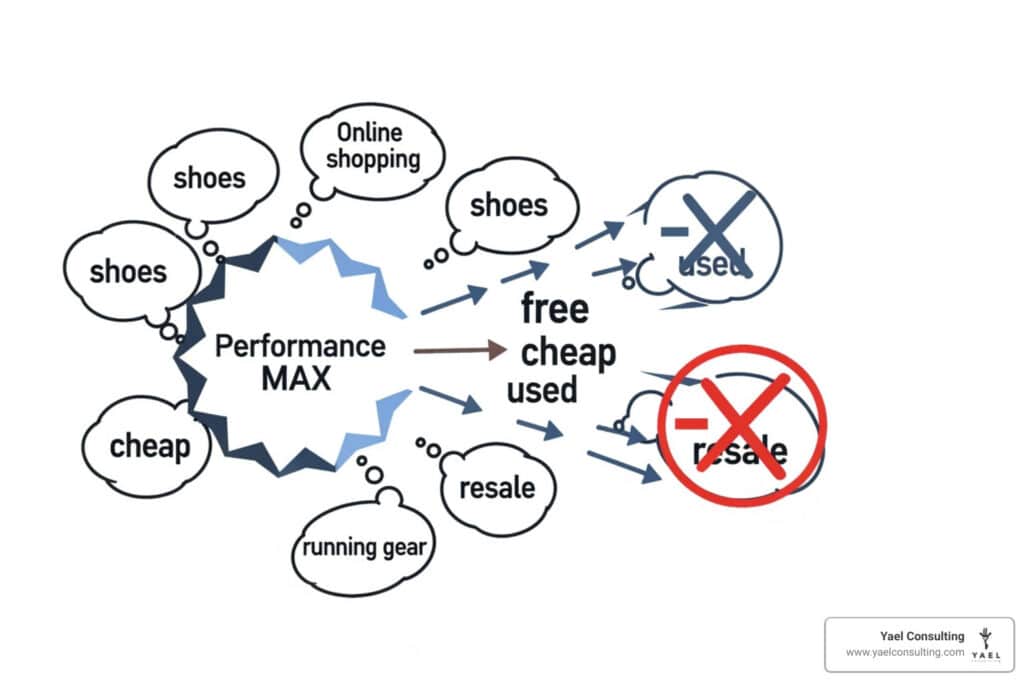
This control matters because Performance Max pulls from both Search and Shopping inventory. Without negative keywords, your premium product ads might show for searches like “cheap,” “free,” or “DIY”—terms that attract browsers, not buyers. Each irrelevant click drains your budget and dilutes your campaign’s performance signals, making it harder for the AI to find actual customers.
I’m Lior Krolewicz, and over 15 years managing millions in ad spend, I’ve seen how the ability to add negative keywords to performance max transforms campaign profitability by cutting wasted spend and sharpening AI targeting. My work with our proprietary IBEX system has shown that systematic negative keyword management can improve conversion rates by 23% while reducing cost-per-click.
Why You Should add negative keywords to performance max Today
In Google Ads, where every click costs money, efficiency is king. Performance Max, with its broad reach across Google’s inventory, offers immense potential, but also the risk of showing your ads to the wrong audience. This is where the strategic power of negative keywords comes into play. They act as a crucial filter, ensuring your message reaches those most likely to convert, not just anyone who types a vaguely related query.
Historically, Performance Max campaigns were often dubbed a “black box” due to their limited transparency regarding search terms. Advertisers had little control over what specific queries triggered their ads, leading to frustration and wasted ad spend. Imagine running an ad for luxury watches, only for it to appear for “cheap watches” or “watch repair.” That’s wasted budget on clicks from users who were never going to buy your product.
The good news is that Google has evolved Performance Max, offering advertisers significantly more control. We can now add negative keywords to performance max campaigns, which is a game-changer for improving relevance and reducing costs. This update directly addresses feedback from advertisers who found the previous 100-keyword limit too restrictive. Now, with a generous limit of 10,000 negative keywords per campaign, aligning with standard Search campaigns, we have the power to truly sculpt our audience. This increased control means we can prevent our ads from appearing for irrelevant keywords, which in turn helps improve ad performance and achieve our conversion goals.
Let’s look at how negative keyword functionality compares between standard Search campaigns and the updated Performance Max:
| Feature | Standard Search Campaigns | Performance Max Campaigns |
|---|---|---|
| Negative Keyword Limit | Up to 10,000 per campaign | Up to 10,000 per campaign |
| Account-Level Negatives | Yes, apply to Search & Shopping inventory | Yes, apply to Search & Shopping inventory |
| Negative Keyword Lists | Yes, can be applied to campaigns | Yes, can be selected for campaigns |
| Inventory Covered | Primarily Search Network | Primarily Search & Shopping inventory (for negatives) |
| Match Types | Broad, Phrase, Exact | Broad, Phrase, Exact |
| Search Term Visibility | Detailed Search Terms Report | Aggregated Search Terms Report (with thresholds) |
For a deeper dive into the fundamentals, you can explore more about negative keywords and their overall role in Google Ads strategy on our site: google ads negative keywords.
Why You Should add negative keywords to performance max for ROI
The primary reason we advocate so strongly for negative keywords is their undeniable impact on your return on investment (ROI). Every time your ad shows for an irrelevant search, and someone clicks it, you’re paying for a “garbage click.” These clicks don’t lead to conversions; they just drain your budget.
By strategically implementing negative keywords, we can:
- Improve Conversion Rate: By filtering out irrelevant traffic, we ensure that the clicks we do get are from users genuinely interested in what we offer. This leads to a higher percentage of clicks turning into valuable conversions.
- Lower Cost-Per-Click (CPC): When your ads are more relevant, Google often rewards you with a better Quality Score, which can lead to lower CPCs. Fewer irrelevant clicks also mean more budget available for high-quality traffic.
- Reduce Conversion Costs: With a higher conversion rate and potentially lower CPCs, the overall cost to acquire a customer (Cost Per Acquisition or CPA) naturally decreases.
- Minimize Wasted Spend: This is the most direct benefit. We prevent our budget from being spent on users who were never going to buy, freeing up funds for more profitable opportunities.
Think of it like this: if you’re selling high-end leather sofas, you don’t want your ads appearing for searches like “cheap couch covers” or “DIY sofa repair.” Those searches indicate a completely different intent. By adding terms like “cheap,” “DIY,” “free,” or even specific competitor names that target a different market segment as negative keywords, we ensure our ads only reach those looking for premium furniture. This focus is critical for boosting your bottom line. We’ve seen how effectively managing these exclusions can significantly improve campaign performance. You can read more about the advantages and disadvantages of this strategy on our page about what are the pros and cons of negative keywords.
Improving Relevance and Brand Safety
Beyond direct ROI, negative keywords are indispensable for maintaining ad relevance and protecting your brand’s image. Performance Max campaigns, by design, are broad-reaching, covering Search and Shopping inventory. This means your ads might appear in contexts you didn’t intend.
For example, if you sell high-quality, ethically sourced coffee, you wouldn’t want your ads appearing for searches related to “cheap instant coffee” or “coffee machine repair” (unless you offer that service!). These are irrelevant queries that dilute your brand message and attract the wrong audience. By using negative keywords, we ensure our ads are shown to users whose intent aligns with our product or service, enhancing our audience targeting. This precision helps us avoid common google adwords negative keyword mistakes that can plague campaigns.
Furthermore, negative keywords play a vital role in brand safety. While Google offers dedicated brand exclusions (which we’ll discuss shortly), negative keywords can still be useful for blocking terms that might be brand-unsafe or completely irrelevant to your offerings. For instance, if your brand name is also a common word with other connotations, you can negate those unrelated meanings to ensure your ads only appear in relevant contexts. This is particularly important for businesses operating in sensitive industries or those with brand names that could be misinterpreted.
How to add negative keywords to performance max
Now that we understand the “why,” let’s dive into the “how.” Adding negative keywords to your Performance Max campaigns is a straightforward process within the Google Ads interface, and Google has made significant improvements to simplify this process over time. Previously, applying negative keyword lists to PMax often required contacting Google Support, which was a bit of a hassle. Thankfully, direct application of lists is now supported, making our lives much easier!
We can apply negative keywords at two main levels: at the campaign level for specific PMax campaigns, or at the account level for broader exclusions across all eligible inventory. Both methods are valuable, depending on your needs. For a comprehensive guide on adding these exclusions, you can also refer to our page: how to add negative keywords in google ads the right way.
Step-by-Step Guide to add negative keywords to performance max
Here’s how we typically add negative keywords to performance max campaigns directly:
- Steer to Your Campaign: Sign in to your Google Ads account. In the left-hand menu, under “Campaigns,” select the specific Performance Max campaign you wish to optimize.
- Access Keywords: Within the campaign’s menu, look for “Keywords” (it might be under “Audiences, keywords, and content” or similar). Click on it.
- Go to Negative Keywords: You’ll see a tab labeled “Negative keywords.” Click on this tab.
- Add New Negative Keywords: Click the blue plus button (+).
- Select Campaign: Ensure your Performance Max campaign is selected from the dropdown menu.
- Enter Keywords: You can now add your negative keywords, one per line.
- Match Types: Just like with positive keywords, negative keywords have match types. We can specify these using symbols:
negative keyword(broad match negative): Excludes searches containing all words in any order. For Display and Video campaigns, all negatives are treated as broad match."negative keyword"(phrase match negative): Excludes searches containing the exact phrase, though other words can be before or after it.[negative keyword](exact match negative): Excludes searches that exactly match the negative keyword.
- Select a List (Optional): If you’ve already created a negative keyword list in your Shared Library, you can select it here to apply it to your PMax campaign. This is a huge time-saver for applying common exclusions across multiple campaigns.
- Save: Once you’ve added your terms, click “Save.”
Performance Max campaigns can now handle up to 10,000 negative keywords per campaign, giving us extensive control. For detailed instructions from Google, you can always refer to the official guide: Negative keywords in Performance Max campaigns.
Applying Account-Level Negative Keywords
For exclusions that apply universally across your entire Google Ads account, account-level negative keywords are your best friend. These are particularly useful for broad terms that are irrelevant to any of your products or services, regardless of the campaign type.
Here’s how we typically set them up:
- Access Account Settings: In your Google Ads account, click on the “Tools and Settings” icon (the wrench icon) in the top menu.
- Steer to Negative Keyword Lists: Under “Shared library,” click on “Negative keyword lists.”
- Create or Edit a List: You can either create a new negative keyword list or edit an existing one.
- Add Keywords: Add your desired negative keywords to this list, one per line, specifying match types as needed.
- Apply to Account: Once your list is ready, you can apply it at the account level. Negative keywords added at the account level automatically apply to all Search and Shopping inventory across all eligible campaigns, including Performance Max campaigns. This is a powerful global exclusion feature.
Account-level negatives are excellent for filtering out broad, irrelevant traffic like “free,” “jobs,” “wiki,” or “torrent” if these are not relevant to your business model. They provide a foundational layer of protection against wasted spend without needing to apply them campaign by campaign. However, keep in mind there’s a limit of 1,000 negative keywords for account-level application. For more information on this method, see negative keywords at the account level.
Advanced Controls: Brand Exclusions and Shared Lists
As we dig deeper into optimizing Performance Max, it’s important to differentiate between general negative keywords and specific brand exclusions. While they both aim to prevent unwanted ad impressions, they serve slightly different purposes and have distinct implementation methods.
Managing Negative Keyword Lists for Performance Max
Shared negative keyword lists are a fantastic way to manage your exclusions efficiently, especially across multiple campaigns or for large sets of terms. Instead of manually adding the same list of negatives to each Performance Max campaign, you can create one central list and apply it.
Here’s how to leverage them:
- Create Your List: Go to “Tools and Settings” (wrench icon) -> “Shared library” -> “Negative keyword lists.” Click the blue plus button to create a new list. We often name ours something clear, like “PMax Negatives” or “Universal Irrelevant Terms,” for easy identification.
- Populate the List: Add all the negative keywords you want to exclude. We recommend starting with a robust initial list of common irrelevant terms.
- Apply to Campaigns: As mentioned in our step-by-step guide, when you go to add negative keywords to performance max at the campaign level, you now have the option to “select an existing negative keyword list.” This simplifies management significantly.
While direct application of negative keyword lists to PMax is now standard, there might be legacy setups or specific, complex scenarios where contacting Google Support is still advised. For such cases, the Performance Max Campaign Modification Request Form could be relevant, though for most advertisers, direct application through the interface should suffice. This evolution in functionality shows Google’s commitment to giving advertisers more control.
For more advanced strategies and tips on creating effective negative keyword lists, our experts have compiled valuable insights on expert tips for adding negative keywords.
Identifying High-Impact Negative Keywords
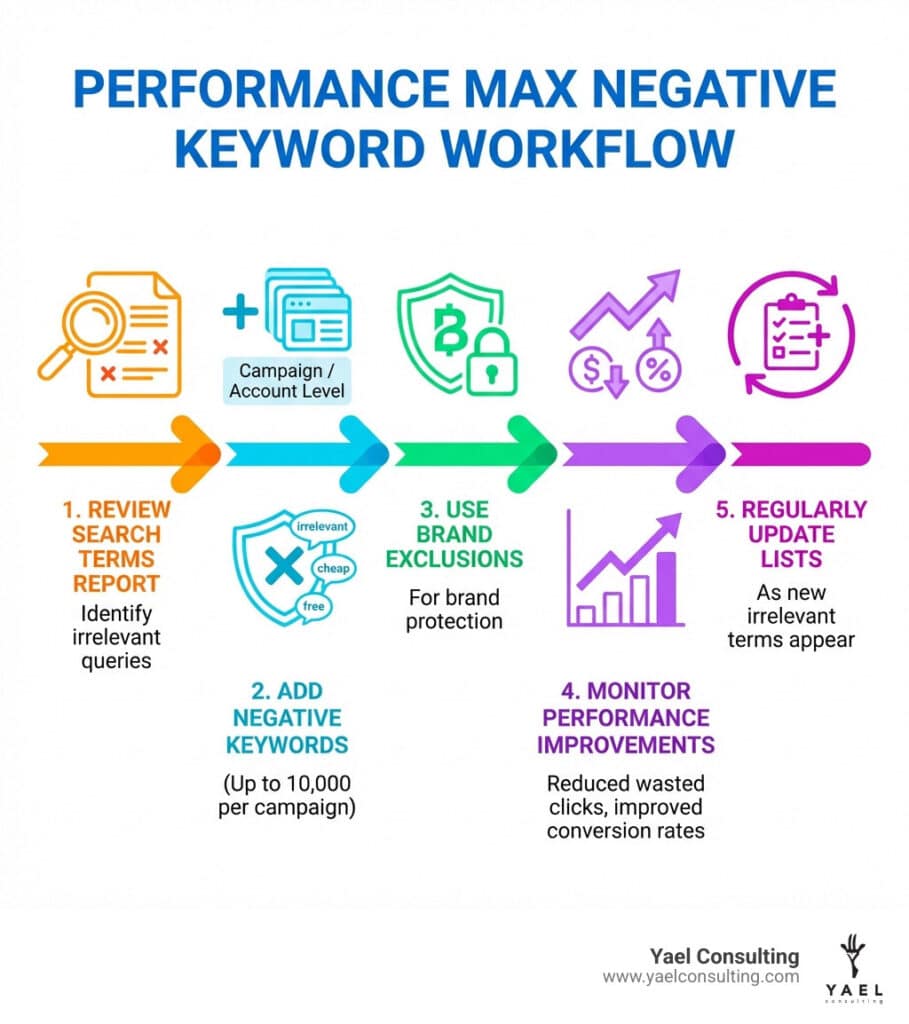
The key to successful negative keyword management lies in continuous analysis. It’s not a one-time task; it’s an ongoing process of refinement. We constantly look for opportunities to add new negative keywords to keep our campaigns lean and efficient.
Here are our top strategies for finding those high-impact negative terms:
- Leverage the Search Terms Report (STR): This is your goldmine. In your Google Ads account, steer to your Performance Max campaign, then look for the “Insights and reports” tab and then “Search terms.” This report shows you the actual search queries that triggered your ads. We carefully review this report, looking for:
- Irrelevant Queries: Searches that clearly have nothing to do with your products or services (e.g., if you sell services, “jobs,” “career,” “employment”).
- Low-Intent Queries: Terms that indicate research rather than buying intent (e.g., “how to,” “free,” “examples,” “reviews” if you don’t offer review content).
- Non-Converting Terms: Queries that generated clicks but no conversions over a significant period. These are prime candidates for exclusion.
- Competitor Terms: If you don’t want to bid on competitor brand names, add them as negatives.
- Brainstorm and Anticipate: Before even launching a campaign, we brainstorm a list of terms that are definitely not relevant. Think about synonyms, alternative uses of your keywords, and anything misleading. For example, a business selling “apple” products might want to negate fruit-related terms. A company selling “beds” might want to negate “flower beds” or “river beds.”
- Use Keyword Planner: While primarily for finding positive keywords, Google’s Keyword Planner can also help identify related terms that might be irrelevant to your business.
- Review Competitor Ads (Ethically): Sometimes seeing what your competitors aren’t bidding on (or what irrelevant ads they’re showing for) can give you ideas for your own negative list.
- Examine Analytics: Look at your website analytics to see what search queries are bringing traffic that has a high bounce rate or low time on site. These could be coming from irrelevant ad clicks.
By regularly performing this detective work, we build comprehensive lists that significantly improve campaign performance. For a broader perspective on how PPC consultants approach this, check out ways ppc consultants look for negative keywords. And for a great starting point, we’ve compiled the ultimate list of negative keyword examples for google ads success.
Best Practices and Frequently Asked Questions
Effective negative keyword management is an ongoing process that requires attention and strategic thinking. Here are some best practices and answers to common questions about using them in Performance Max.
What is the negative keyword limit for Performance Max?
Good news! Performance Max campaigns can now have up to 10,000 negative keywords per campaign. This is a significant increase from the previous cap of just 100, which many advertisers found highly restrictive. This higher limit aligns Performance Max with the capabilities of standard Search campaigns, giving us much more granular control over where our ads appear. This change reflects Google’s response to advertiser feedback, offering more transparency and optimization potential within this powerful campaign type.
Do negative keywords apply to Display and Video inventory?
This is a crucial distinction. Negative keywords that we add negative keywords to performance max campaigns are primarily applicable to Search and Shopping inventory only. This means they will prevent your ads from showing for irrelevant queries on Google Search and within Google Shopping.
For Display and Video campaigns (which Performance Max also uses), the behavior of negative keywords is different:
- All negative keywords are considered broad matches.
- A maximum of 1,000 negative keywords is considered for these networks.
- They are less precise on the Display Network, and your ad may still occasionally appear on pages containing these terms.
Therefore, for Display and Video placements, we recommend focusing on other controls like site category options and content exclusions to avoid targeting unrelated sites or videos. These tools provide more effective ways to manage where your ads appear on the Display Network.
How can I monitor the impact of my negative keywords?
Monitoring the impact of your negative keywords is essential to ensure they are working as intended and not inadvertently blocking valuable traffic. Here’s our recommended approach:
- Regularly Review the Search Terms Report: This is your primary tool. Access it within your Performance Max campaign under “Insights and reports.” Look for:
- Terms with Clicks but No Conversions: These are prime candidates for negation.
- Terms with Zero Impressions: If a term you want to show for has zero impressions, check if you’ve accidentally added a negative keyword that’s too broad or too restrictive.
- New Irrelevant Terms: Search queries are dynamic. New irrelevant terms will always pop up, so a weekly review is ideal.
- Track Key Metrics: After implementing negative keywords, keep a close eye on:
- Cost-Per-Click (CPC): Should ideally decrease or stabilize if you’re eliminating wasteful clicks.
- Conversion Rate (CVR): Should improve as traffic becomes more qualified.
- Cost Per Acquisition (CPA): Should decrease.
- Return on Ad Spend (ROAS): Should increase.
- Use Aggregated Data: The Search Terms Report in Performance Max provides aggregated data, meaning you won’t see every single query, especially for low-volume terms. Focus on patterns and significant trends.
- Conversion Tracking: Ensure your conversion tracking is robust and accurate. Without reliable conversion data, it’s impossible to truly assess the impact of your negative keywords.
- A/B Testing (if possible): For more advanced users, consider running experiments where you apply different negative keyword lists to separate Performance Max campaigns (if your account structure allows) to scientifically measure their impact.
By consistently monitoring these elements, we can fine-tune our negative keyword strategy, ensuring our Performance Max campaigns are driving the best possible results. This proactive approach is a cornerstone of optimizing any Google Ads campaign, including performance max. Regular account audits, as detailed in how to audit your google ads account, will always include a thorough review of negative keywords.
Conclusion
The evolution of Performance Max, particularly the improved ability to add negative keywords to performance max campaigns, represents a significant win for advertisers. What was once a “black box” is now a powerful, automated campaign type that can be finely tuned to maximize your ROI. By intelligently excluding irrelevant search terms, we can ensure our ads reach the right audience, reduce wasted spend, and drive more efficient conversions.
At Yael Consulting, we’ve seen the transformative power of strategic negative keyword management in Google Ads. Our 15+ years of expertise, combined with proprietary technology and direct CEO involvement, helps e-commerce and lead generation businesses in the USA, Israel, New York, and Los Angeles achieve significant sales and profit growth. We understand that every dollar counts, and meticulous optimization, including the strategic application of negative keywords, is key to sustained success.
Ready to take control of your Performance Max campaigns and ensure every ad dollar works harder for you? We invite you to experience the Yael Consulting difference.
Master your campaign with our expert negative keyword strategies